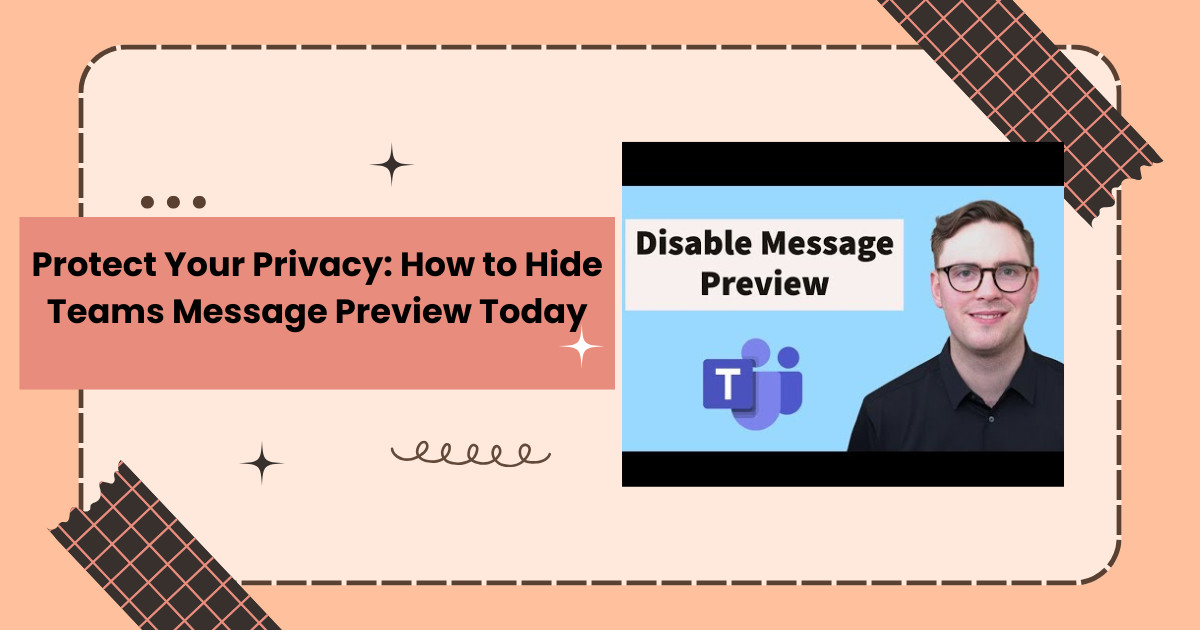
Protect Your Privacy: How to Hide Teams Message Preview Today
I still remember the exact moment I realized I needed to learn how to hide Teams message preview displays. I was sitting in a high-stakes meeting, sharing my full screen, and feeling entirely confident. Suddenly, a private notification popped up in the bottom-right corner of my display, completely exposing a private conversation.
My heart dropped. While it wasn’t anything scandalous, it was deeply personal, certainly enough to make me wish I could magically disappear from the call.
If you use Microsoft Teams daily, a similar situation has probably happened to you. You are knee-deep in a project, presenting to an important client, or reviewing numbers with your manager when an unexpected pop-up flashes across the screen. In that split second, the line between professional boundaries and accidental exposure completely vanishes because you did not choose to hide Teams message preview alerts.
The good news is that you don’t have to live in fear of the dreaded pop-up banner. By taking five minutes to adjust your privacy configuration and learn how to hide Teams message preview notifications, you can permanently disable these text leaks. Let’s break down exactly how to secure your screen across desktop, mobile, and presentation environments.
1. How to Hide Teams Message Preview on Desktop
The desktop version of Microsoft Teams handles notifications through a dedicated settings pane. When you choose to hide Teams message preview text, it ensures that while you will still receive an alert that a message has arrived, the actual text content remains invisible to onlookers.
Step-by-Step Desktop Guide
- Launch Microsoft Teams and click on the three dots (Settings and more) next to your profile picture in the top-right corner.
- Select Settings from the drop-down menu.
- Navigate to the Notifications and activity tab on the left-side menu.
- Locate the Chats and channels section to adjust your preview settings.
- Find the toggle labeled Show message preview and turn it Off to completely hide Teams message preview banners.
Once you successfully hide Teams message preview alerts, your incoming notification banners will simply read “Message” alongside the sender’s name, keeping the actual content safe from wandering eyes.
2. How to Hide Teams Message Preview on iOS and Android Mobile Apps
Mobile notifications can be even more exposing than desktop alerts, especially if your phone rests face-up on a shared conference table. To hide Teams message preview alerts on the go, you must configure both the app itself and your operating system settings.
Inside the Teams Mobile App
- Tap your profile icon in the top-left corner and select Settings.
- Tap on Notifications.
- Under the Blocks and Alerts section, find Show previews and toggle it off to hide Teams message preview lines.
System-Level Mobile Adjustments
- For iOS (iPhone): Go to Settings > Notifications > Teams > Show Previews and select When Unlocked or Never to systematically hide Teams message preview snippets.
- For Android: Go to Settings > Apps > Teams > Notifications > Lock Screen and select Hide Sensitive Content.
3. Hide Teams Message Preview Steps During Screen Sharing and Meetings
Turning off global alerts is an excellent foundation, but high-stakes presentations demand an extra layer of operational security. When you are projecting your workspace to an entire room, you must know how to hide Teams message preview blocks during a live stream.
Share the Window, Not the Desktop
When initiating a screen-share within a Teams meeting, the system prompts you to choose between sharing your entire desktop or a single application window. Always choose a specific window. Even if you forget to hide Teams message preview alerts at the system level, meeting participants will only see the application you explicitly selected.
Leverage Windows Focus Assist and macOS Do Not Disturb
Before clicking the share button, leverage your computer’s built-in presentation modes to automatically hide Teams message preview cards and halt incoming visuals.
- Windows 11 (Focus/Do Not Disturb): Click the clock on your taskbar and toggle on the Do Not Disturb icon to instantly suppress all system banners.
- macOS (Focus Modes): Click the Control Center icon in the menu bar, select Focus, and activate Do Not Disturb or Presenting.
Read more about Does Instagram Notify When You Delete a Message in 2026? 100+ Emotional Messages & Recovery Tips
4. Customizing Your Notification Privacy for Sensitive Work Chats
Not all chats are created equal. You may want to allow text snippets for standard internal team chatter while choosing to hide Teams message preview windows for channels tied to human resources, legal matters, or external clients.
| Target Environment | Recommended Notification Strategy | Benefit |
| High-Volume Group Chats | Right-click chat $\rightarrow$ Select Mute | Prevents constant banner interruptions entirely. |
| External/Guest Contacts | Set status to Do Not Disturb | Automatically helps hide Teams message preview flags from outside users. |
| Confidential Channels | Select Custom Notifications $\rightarrow$ Turn off Banners | Restricts notifications strictly to the in-app activity feed. |
Conclusion
Learning how to hide Teams message preview setups shouldn’t feel like a stressful, uphill battle. By taking a few moments to turn off message previews, you eliminate the risk of accidental screen exposure, protect proprietary company data, and reduce visual clutter during your workday.
Take a quick look through your notification settings right now. Making the choice to hide Teams message preview pop-ups today will give you absolute peace of mind during your next big presentation.
Frequently Asked Questions
Will choosing to hide Teams message preview stop me from getting notifications entirely?
No. You will still receive a desktop banner or a mobile push notification alerting you that a new message has arrived. The only difference when you hide Teams message preview text is that the snippet of the message will be replaced by a generic placeholder, such as “Sent a message.”
Can I hide Teams message preview entries for specific people only?
Microsoft Teams operates on a global preview toggle for all chats. However, you can achieve a similar localized result by selecting an individual sensitive chat, clicking its three-dot menu, and choosing Mute. This stops all pop-up banners for that specific conversation.
Does turning off previews on my PC automatically hide Teams message preview alerts on my phone?
No. Notification layouts are device-specific. If you want to completely hide Teams message preview text across your entire digital ecosystem, you must manually turn off message previews within both the desktop application and the mobile application separately.